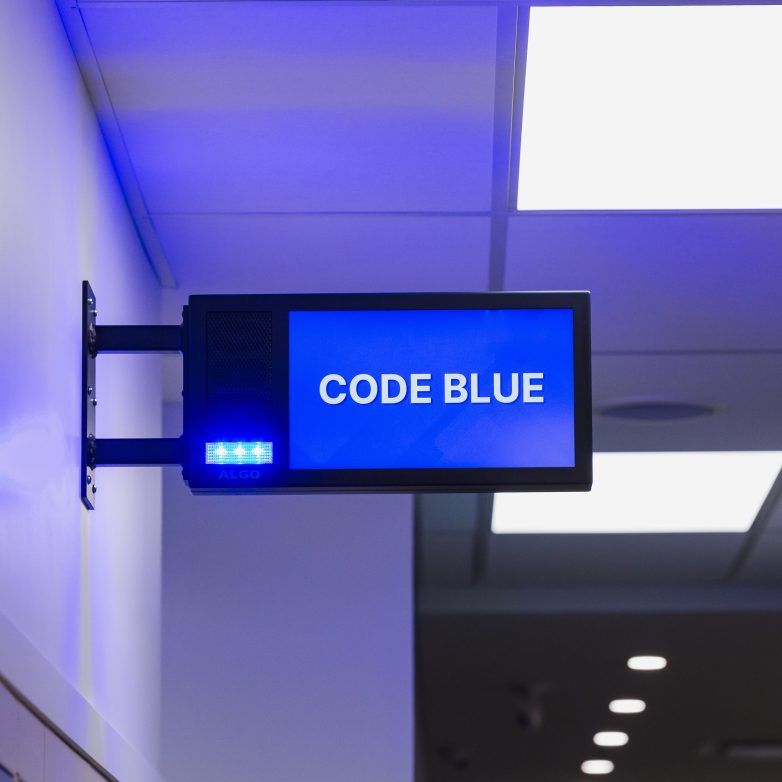
Managing and Customizing Visual Messaging on Algo IP Display Speakers
Manage visual messaging on Algo IP Display Speakers with customizable Slides and Screens through ADMP.

Overview
Most organizations rely on paging systems to distribute audio across classrooms, hallways, healthcare spaces, and commercial environments. However, audio alone does not guarantee that every message is heard, understood, or confirmed.
In busy environments, announcements may compete with background noise or ongoing activity. Staff and occupants may hear a tone or partial message but lack clear confirmation of what was announced. During emergency situations, this uncertainty can slow response and create confusion.
Why Visual Messaging Matters in Paging Environments
Visual messaging closes the gap between hearing an announcement and confirming what was said.
By pairing audible paging with synchronized on-screen text, color-coded alerts, and LED indicators, organizations reinforce important information and provide immediate visual confirmation. This improves clarity in noisy environments, supports accessibility requirements, and provides an additional layer of awareness when announcements may be missed.
Algo IP Display Speakers address this need by combining audio paging with integrated visual messaging.
The Algo 8410 IP Display Speaker and 8420 IP Dual-Sided Display Speaker deliver both audio paging and visual messaging. Their high-visibility, long-life LEDs provide wide-angle coverage, while custom LCD displays ensure alerts are seen as well as heard.


Explore IP Display Speakers Features→
How Screens and Slides Work on Algo IP Display Speakers
Different environments require different visual needs. A hallway display may need a rotating clock and announcement slides, while a classroom display may prioritize event notifications. During an emergency, an alert screen should override idle content immediately.
On Algo IP Display Speakers, Slides define individual pieces of visual content. A Slide may include a digital clock, scrolling text, an emergency alert template, or a branded message. Slides determine what appears on the display.

Screens determine when and how slides appear. A screen may be assigned as the default idle display or triggered by a SIP paging event or multicast notification. Multiple slides can rotate within a single screen based on defined display duration and layout preferences.
Separating slides from screens allows administrators to design and reuse visual elements and apply them across different scenarios.
How to Add and Assign Slides on Algo IP Display Speakers
Slides are created in the device web interface under Display → Slides. Administrators can select from preconfigured templates, define layout preferences, configure text behavior, adjust font styles, and select colors that match organizational branding.

Once Slides are created, they are assigned to Screens under Display → Screens. From there, Screens can be mapped to default display states or linked to SIP and multicast events. This allows visual content to change automatically when paging or alert conditions occur.

Typical Workflow:
- Create slides that define the visual content
- Assign slides to screens
- Map screens to paging or alert events
For detailed configuration steps, refer to the 8410 and 8420 IP Display Speaker User Guide sections covering: Display → Slides, Display → Screens and Emergency Alerts.
This structure ensures that visual messaging can be customized without disrupting the existing SIP or multicast paging configuration. It also ensures that visual alerts, announcements, and informational displays remain synchronized with the broader paging system.
Explore IP Display Speakers User Guide→
How to Customize Slides for Schools and Facility Environments
Once slides and screens are configured, organizations can tailor visual messaging to match the needs of specific environments.
In educational settings, a slide may display a digital clock synchronized through Network Time Protocol (NTP) to provide consistent time visibility across campuses. Administrators can also configure scrolling text for schedule changes, exam reminders, event announcements, or visitor information.

During emergency events, predefined alert slides can display high-contrast visual messaging aligned with safety procedures. A lockdown or evacuation notification can combine visual text, LED flash patterns, and synchronized audio to provide clear confirmation.

In healthcare or commercial environments, visual displays may reinforce compliance reminders, safety notifications, or directional guidance. Idle screens can also incorporate branding or informational updates without overwhelming the viewer.

By customizing slides to reflect real operational scenarios, organizations ensure announcements are both audible and visible.
Explore Algo IP Display Speakers→
How ADMP Enables Centralized Management of IP Display Speakers
As deployments scale across buildings or campuses, managing display content individually becomes inefficient.
Algo Device Management Platform (ADMP) enables centralized monitoring and management of multiple devices including 8410 and 8420 IP Displays. Administrators can maintain consistent visual messaging, apply updates remotely, and monitor device status all from a single interface.

This centralized visibility is especially valuable in school districts, healthcare facilities, and industrial environments where standardized communication workflows are essential.
With ADMP, organizations can maintain operational oversight while ensuring flexibility in how visual content is deployed across their environments.
Learn More About ADMP Cloud Monitoring →
How to Trigger Visual Alerts Using SIP and Multicast
Visual communication becomes most impactful when it aligns directly with live events.
Algo IP Display Speakers allow screens to be assigned to SIP paging events or multicast zones. When a page is initiated or an alert is triggered, the display automatically switches to a predefined visual Screen.
For example, when an emergency extension is dialed, the device can display a specific alert Slide while simultaneously broadcasting audio. Multicast zones can deliver synchronized visual messaging across multiple display speakers, ensuring consistency throughout a building.
This unified audible and visual solution reduces uncertainty and provides immediate confirmation of important announcements during critical situations.
Best Practices for Designing Clear and Effective Display Messaging
Effective visual messaging depends on thoughtful design as well as configuration.
Font size and contrast should be selected based on viewing distance and ambient lighting conditions. Brightness levels may require adjustment for hallways, classrooms, or open areas to maintain readability without glare.
Idle Screens should remain uncluttered and professional. Emergency Screens should prioritize high-contrast text and concise messaging. Flash patterns should draw attention without creating confusion.
By aligning visual design choices with communication procedures, organizations can increase awareness and reduce hesitation in both routine and critical scenarios.
How Algo IP Display Speakers Support Visual Paging and Alert Communication
Visual messaging reinforces audible paging by providing confirmation and situational clarity at the point of need.
Through customizable Slides and Screens, the Algo 8410 and 8420 IP Display Speakers support announcements, alerts, and informational messaging across educational, healthcare, and commercial environments.
With centralized management through ADMP, organizations can scale visual messaging across buildings and sites while maintaining operational consistency.
Together, audible paging and visual messaging help ensure important informationis both heard and seen.
If you’re interested in learning more, request a demo to see how customizable visual messaging can support your paging environment.
Explore the following resources to learn more:
- Download the 8410 IP Display Speaker Product Sheet →
- Download the 8420 IP Dual-Sided Display Speaker Product Sheet →
- Watch the IP Display Speaker Overview Video →